


 SAR Technology
Cloud
Login - ‘Incident Commander Pro’
SAR Technology
Cloud
Login - ‘Incident Commander Pro’

 Download
the SAR Technology Cloud-Login file (right-click save
to your desktop).
Download
the SAR Technology Cloud-Login file (right-click save
to your desktop).
1. Double-click the SAR
Technology Cloud-Login file.
e.g. CloudLogin.rdp
(Right-click... Edit... to login as a different user)
2. Run
'Incident Commander Pro' on the SAR Technology Cloud.
Alternate
Login Procedure

A Desktop window will appear displaying ‘Incident Commander Pro’ on the
cloud.
Run ‘Incident Commander Pro’ in
the same way as on your local desktop.


 Local
Devices Enabled. Two different User Logins
permitted.
Local
Devices Enabled. Two different User Logins
permitted.
'Incident
Commander Pro' Quick Tips:
 Initial Setup: Pre-enter
or import personnel data for fast Check-In.
Initial Setup: Pre-enter
or import personnel data for fast Check-In.
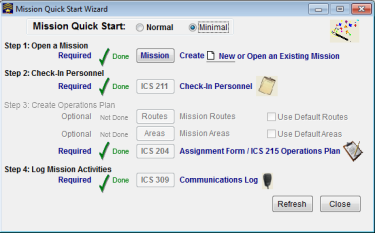
Use File... Mission Quick Start - to rapidly create the mission.
Use the New
button to create new records. 
Use Data Entry - to enter data into tables. 
Use File... Delete - to delete the current record. 
Cloud
Quick Tips: 
 Print
'Incident Commander Pro’ reports to local-computer pdf files.
Print
'Incident Commander Pro’ reports to local-computer pdf files.
e.g.
Print... Save As... Computer\C
on MyDrive\MyLocalFiles\Personnel.pdf.
Then print using your local printer.
(or
copy, then paste onto the local computer for printing).
 Copy/Paste to/from Local-Computer/Cloud
(text, files, images etc.)
Copy/Paste to/from Local-Computer/Cloud
(text, files, images etc.)


 (Cloud) Windows Explorer -
Copy/Paste/Move
(Cloud) Windows Explorer -
Copy/Paste/Move
(Cloud Computer:) C:\MyCloudFiles\Equipment.jpg
(Local Computer Drive:) Computer\C
on MyDrive\MyLocalFiles\Equipment.jpg
(Local
Computer Networked Drive: Network\\tsclient\\tsclient\C:\MyLocalFiles\Equipment.jpg)
Enable
Local Printing, Drives & Devices on the SAR Technology Cloud
Alternate
Log-In Procedure to 'Incident Commander
Pro' on the SAR Technology Cloud
Click on Windows Start… Remote
Desktop Connection
- Enter the Cloud Computer Address e.g. 182.210.32.27
- Enter the Username and Password.
(This information can be saved to a file, e.g. MyTeamCloud.rdp, for
one-click reconnection).
-
Click Connect.
For more information please
contact:
|
SAR Technology Inc. |  |
View / Save / Share |
 Phone:
(604) 921-2488
Phone:
(604) 921-2488  Fax
(604) 921-2484
Fax
(604) 921-2484  sartechnology@telus.net
 SAR
Technology
Home
SAR
Technology
Home